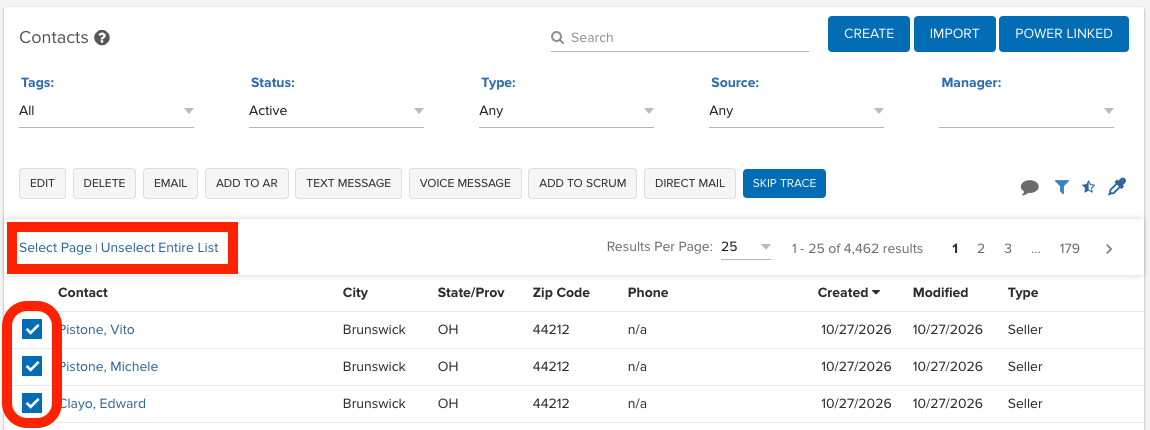
Begin by accessing your CONTACTS list (Click CONTACTS from the left navigation menu). Then select one or more contacts from your list by checking the box to the left of the selected contact name.
Please Note: You can select Contacts Individually, or select a Entire Page or Entire List
1. Select Leads
Select the contacts that you would like to SkipTrace by clicking the checkbox to the left of each contact name.
2. LeadTrace
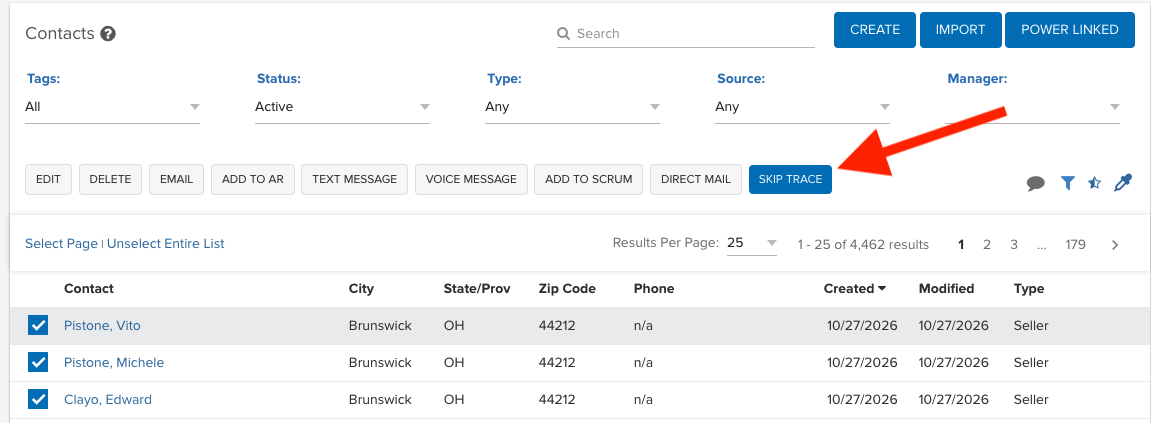
Click the LeadTrace button just above the List.
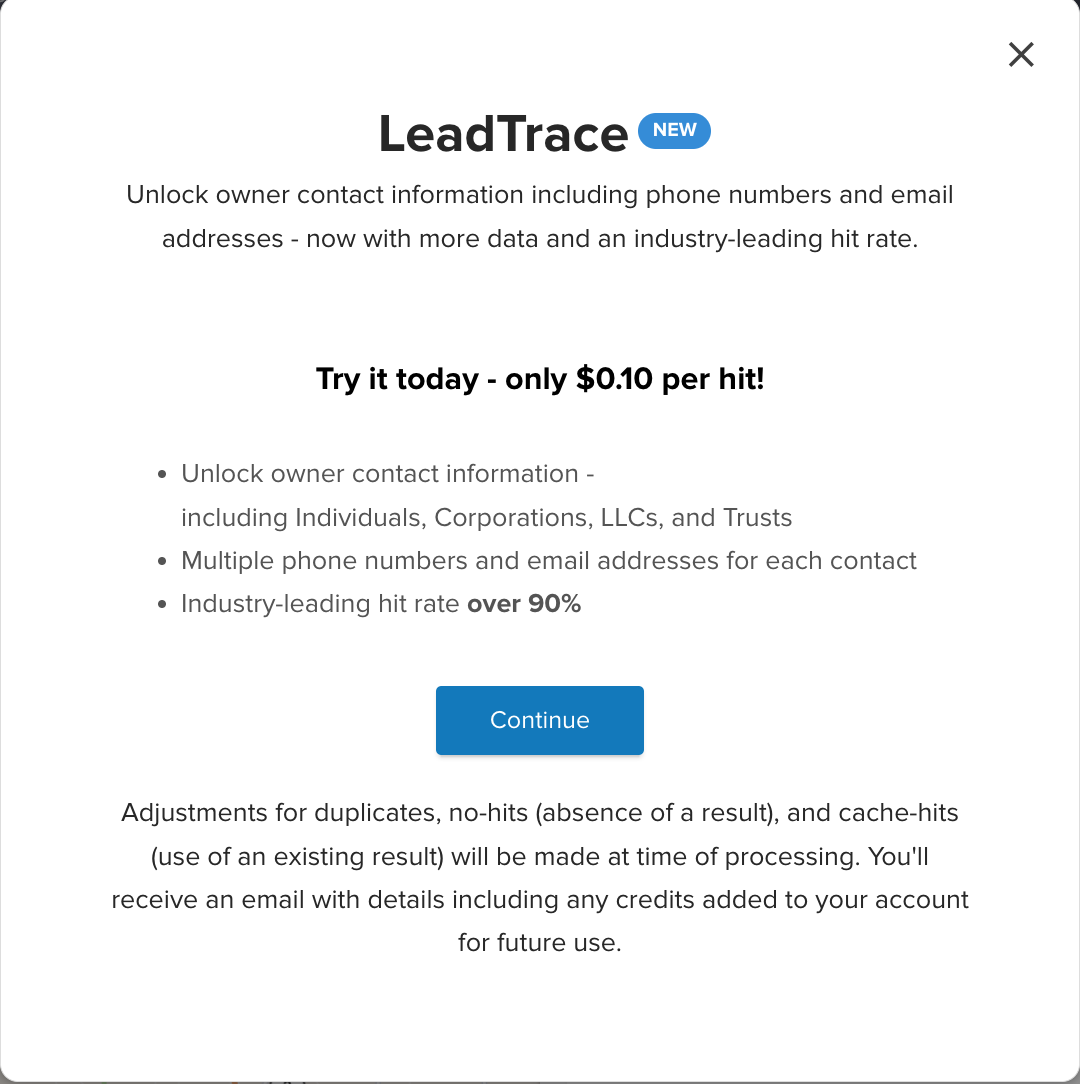
When you click on LeadTrace, you will initiate the Request process:
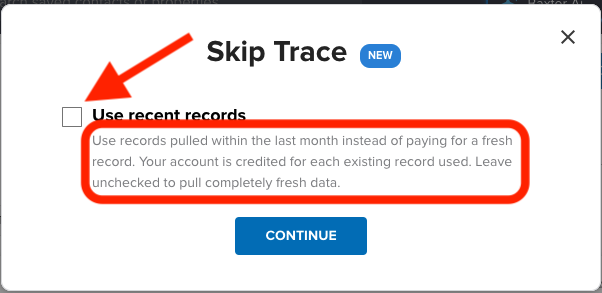
3. Use Recent Records
Use records pulled within the last month instead of paying for a fresh record. Your account is credited for each existing record used. Leave unchecked to pull completely fresh data.
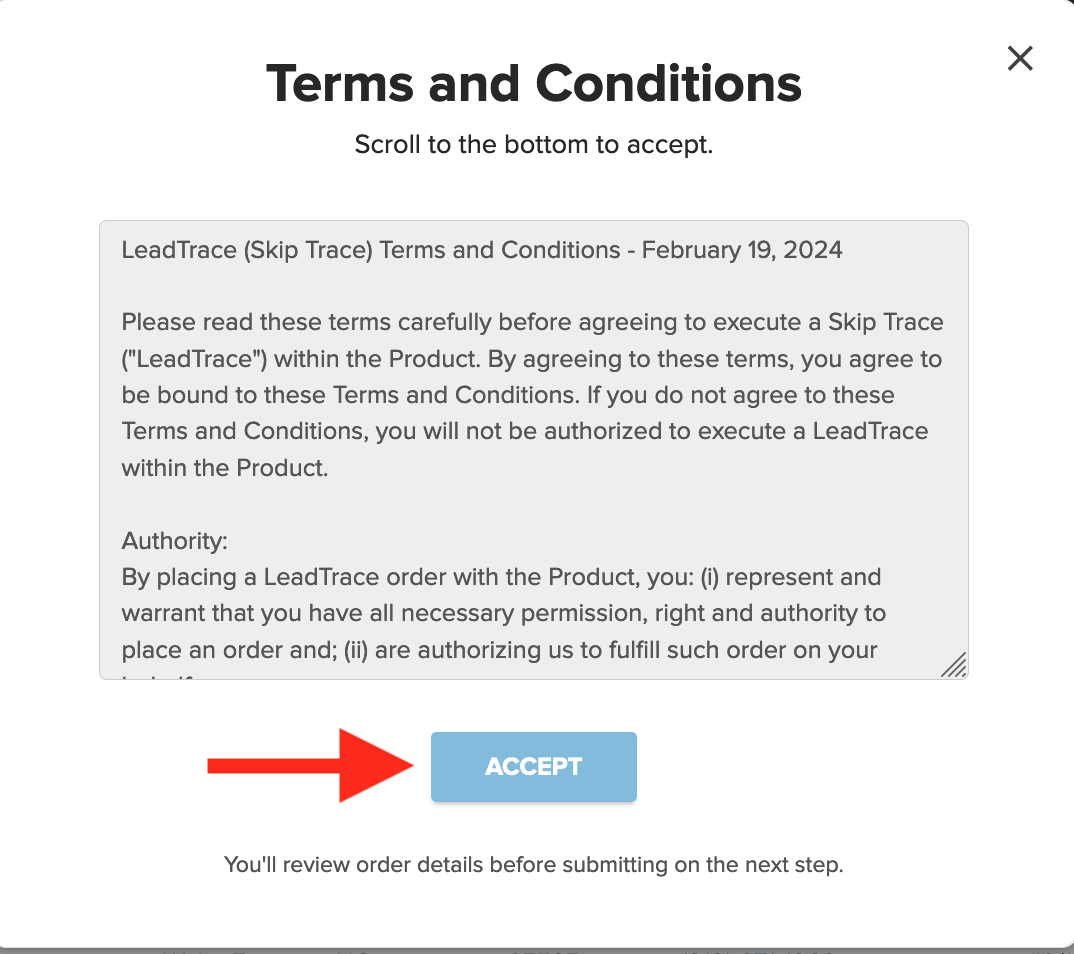
4. Accept Terms & Conditions
Scroll through to the bottom of our Terms & Conditions in order to click ACCEPT and proceed.
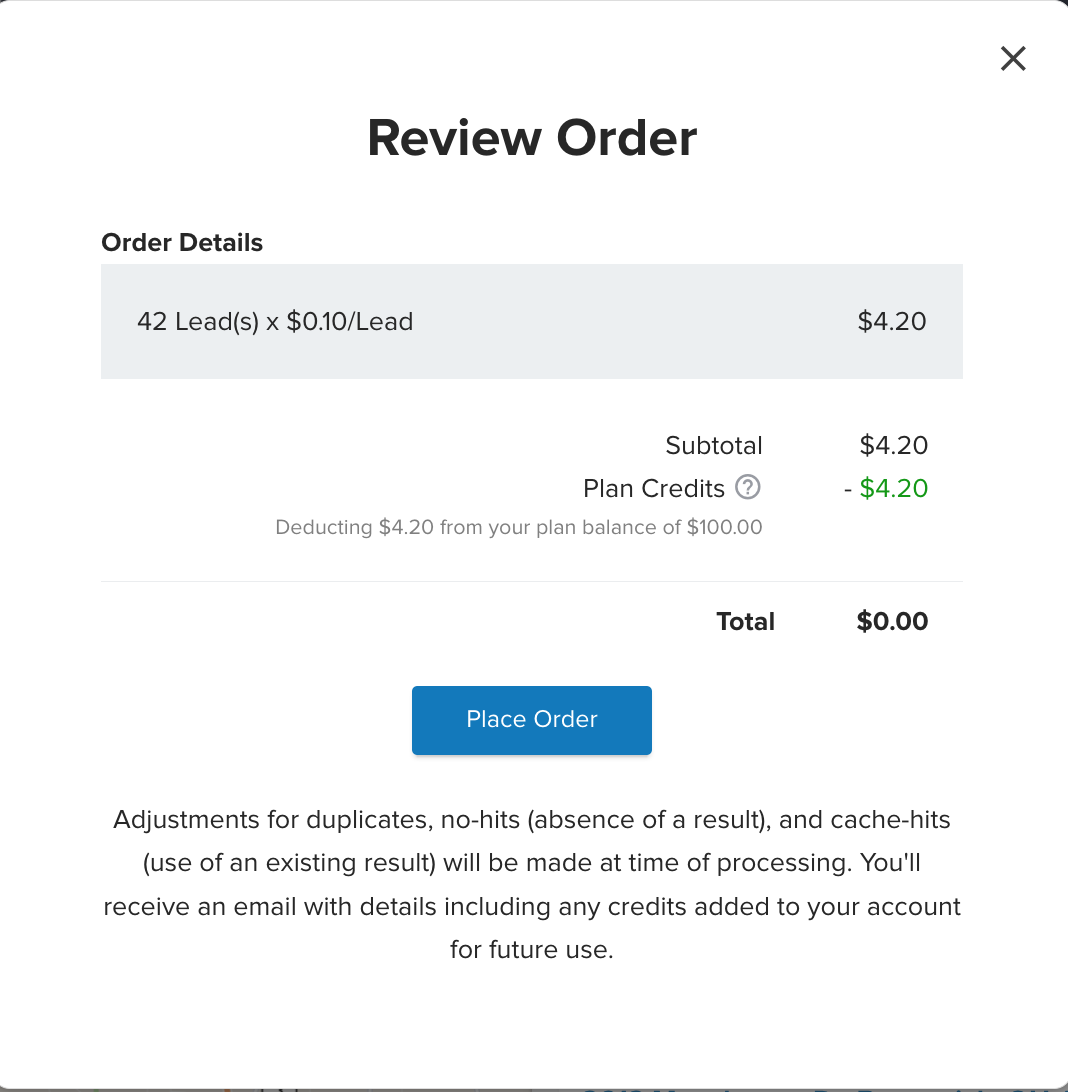
5. Review & Place Order
Review your order total on the final step. If you have a Credit Balance from a previous order you will be able to use your credits here. We will only allow you the option to enter Payment Information if you do not have enough credits to cover the order total.
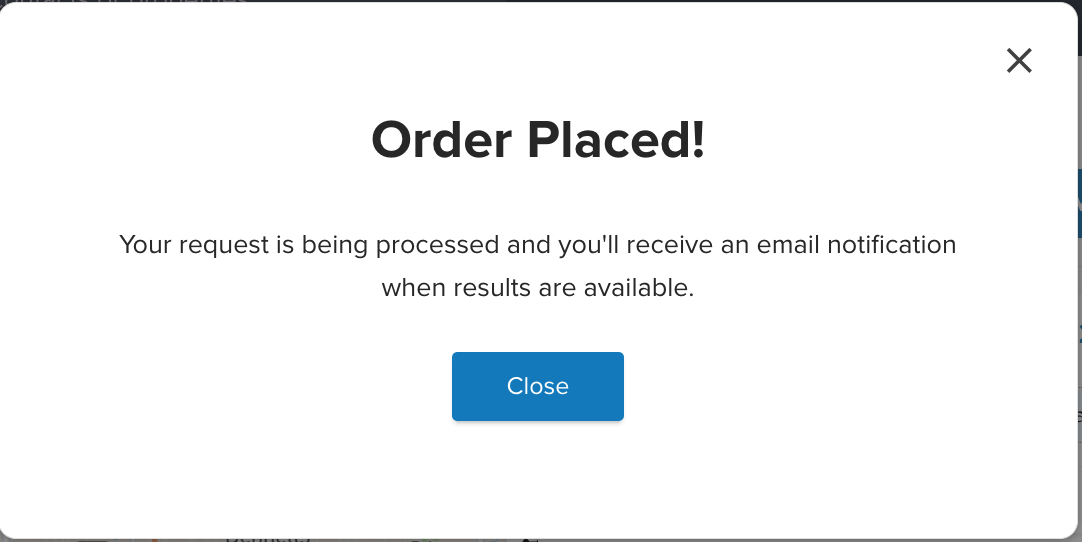
6. Email Confirmation
Depending on the size of your list, you will receive an email confirmation a few minutes after your order is submitted. Please keep in mind that larger lists may take longer to complete.
7. Delivery
Contact records will be updated to include the Skip Traced details.
- Click CONTACTS in the left navigation to access the Contacts list
If we were able to obtain a phone number, it will populate in the MOBILE PHONE field of the contact file and also be visible from the list view.
You will also receive an email confirmation when your lead list is ready.

QA Team