Initiate a lead search.
Once you have filtered the list, you can add the leads to the MY LEADS drawer and request the Skip Trace.
1. Select Leads
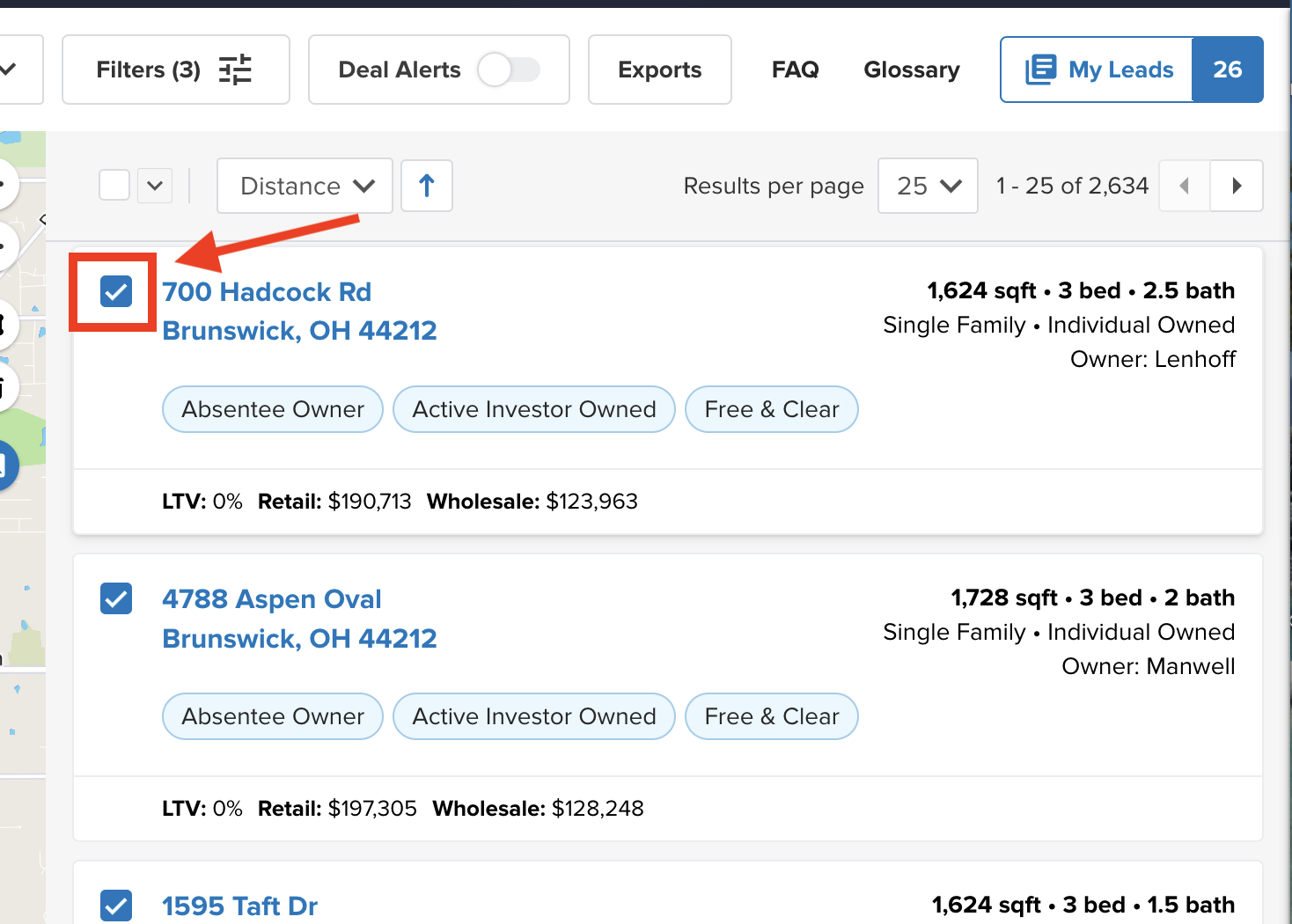
Select the leads you would like to Skip Trace by clicking the checkbox to the left of each lead. This will add the leads to the MY LEADS drawer in the Upper Right Hand Corner
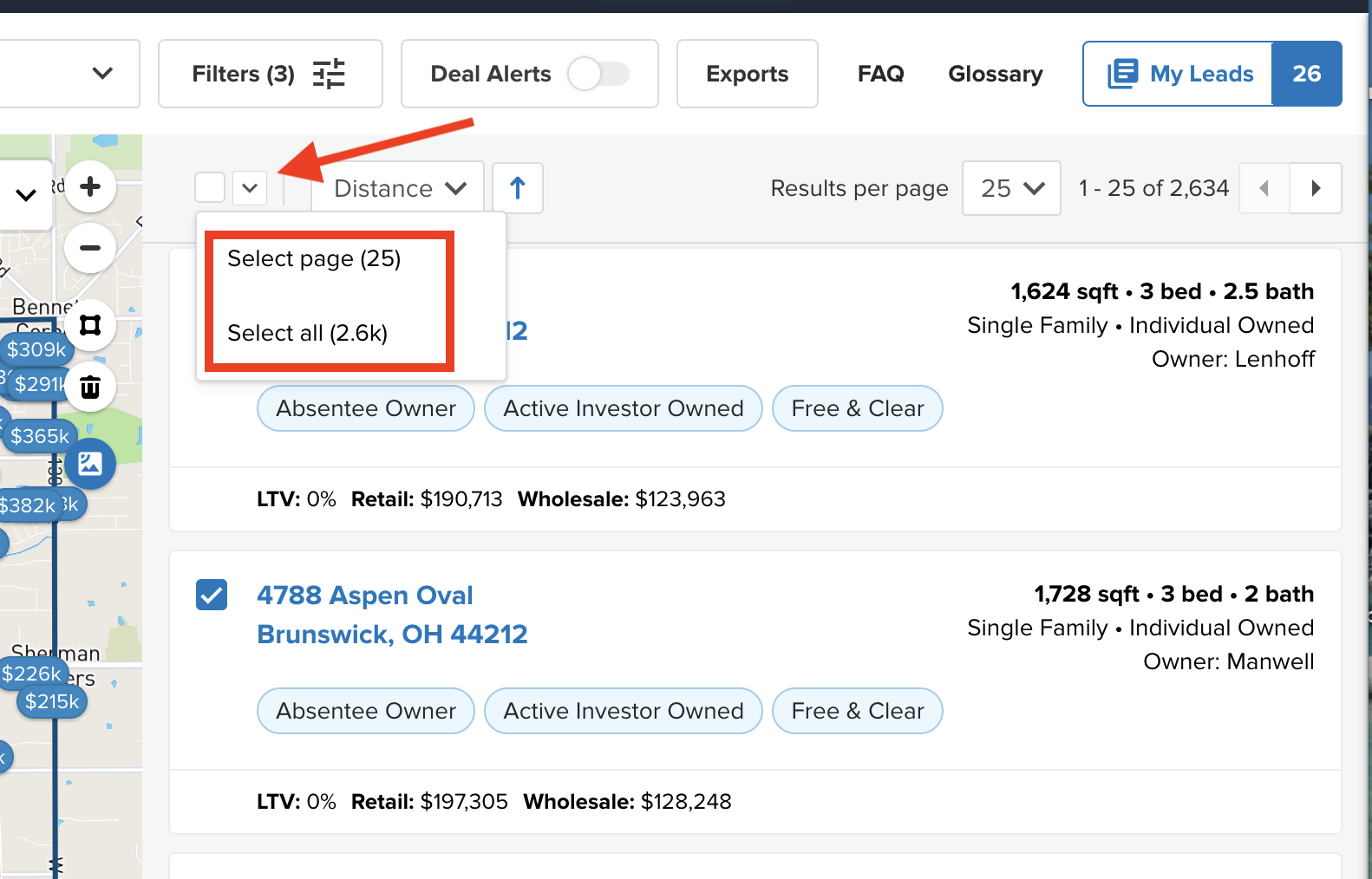
Leads can be selected one at a time or in bulk.
To Select Individually: Click the box to the left of the address
To Select in Bulk:
Click the 'Down Arrow' at the top of the list. Then choose 'Select Page' or 'Select All'
2. My Leads Drawer
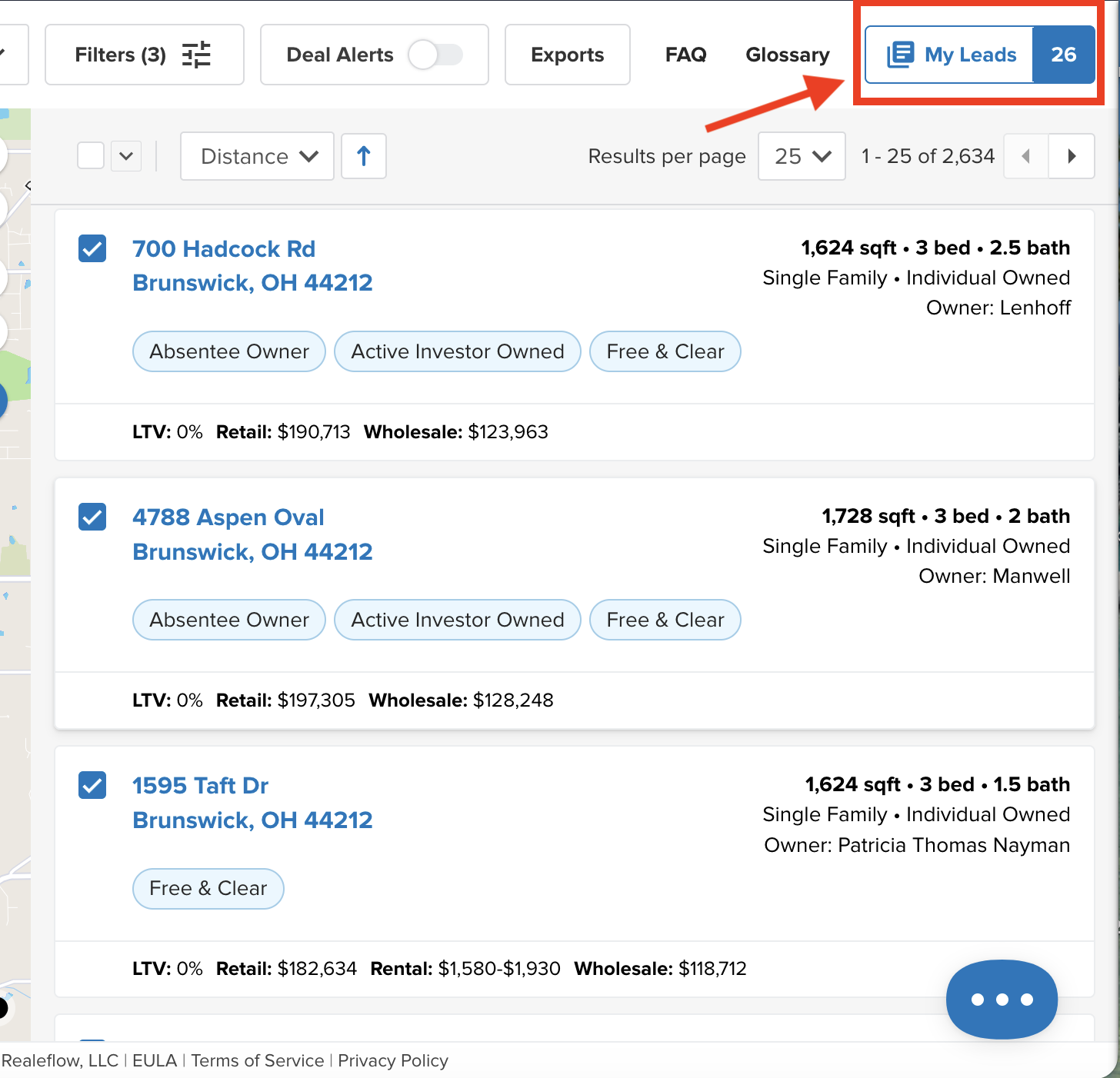
Click on the MY LEADS drawer button located at the top right.
3. Skip Trace
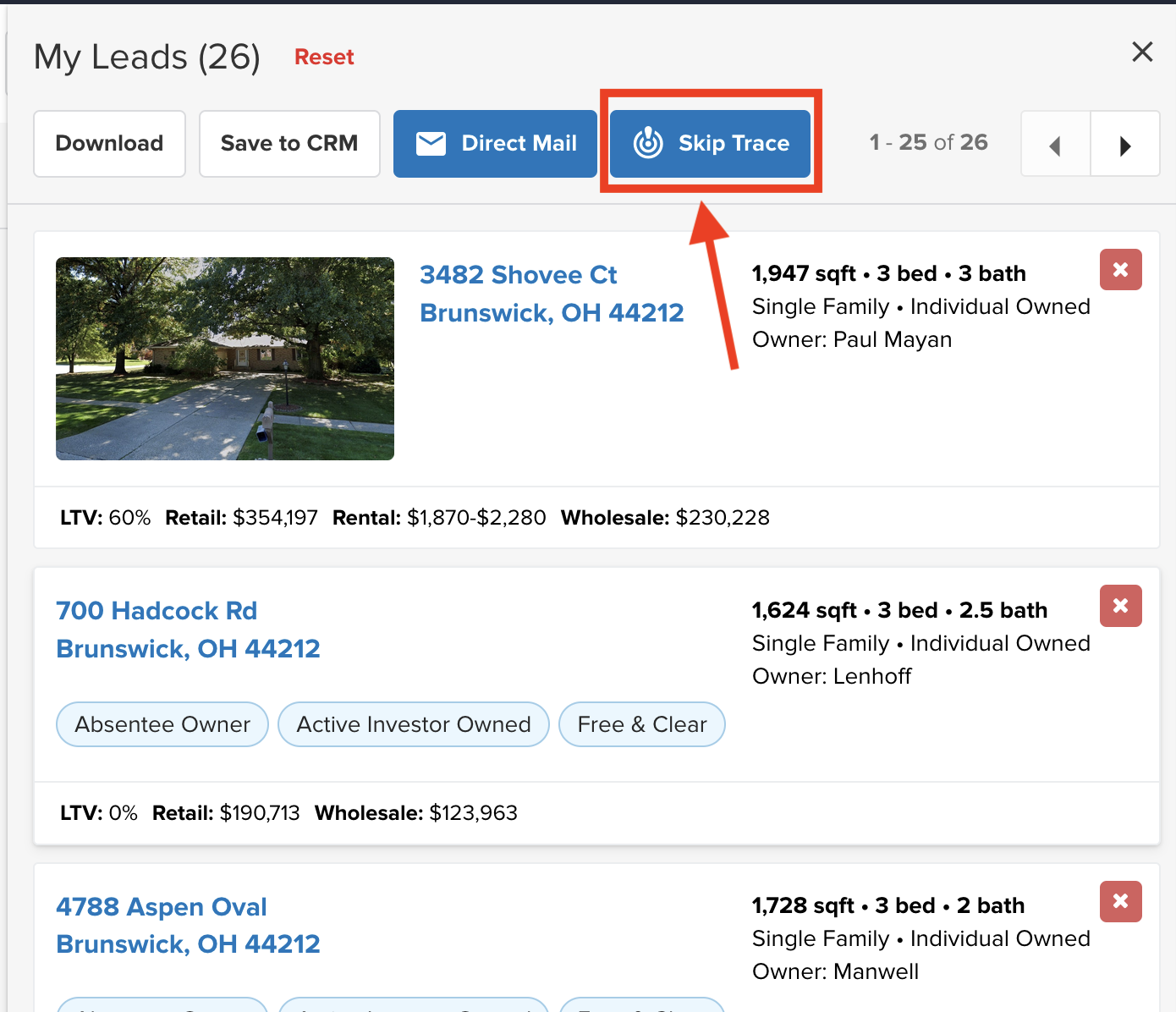
Once within the MY LEADS drawer, Click the Skip Trace button
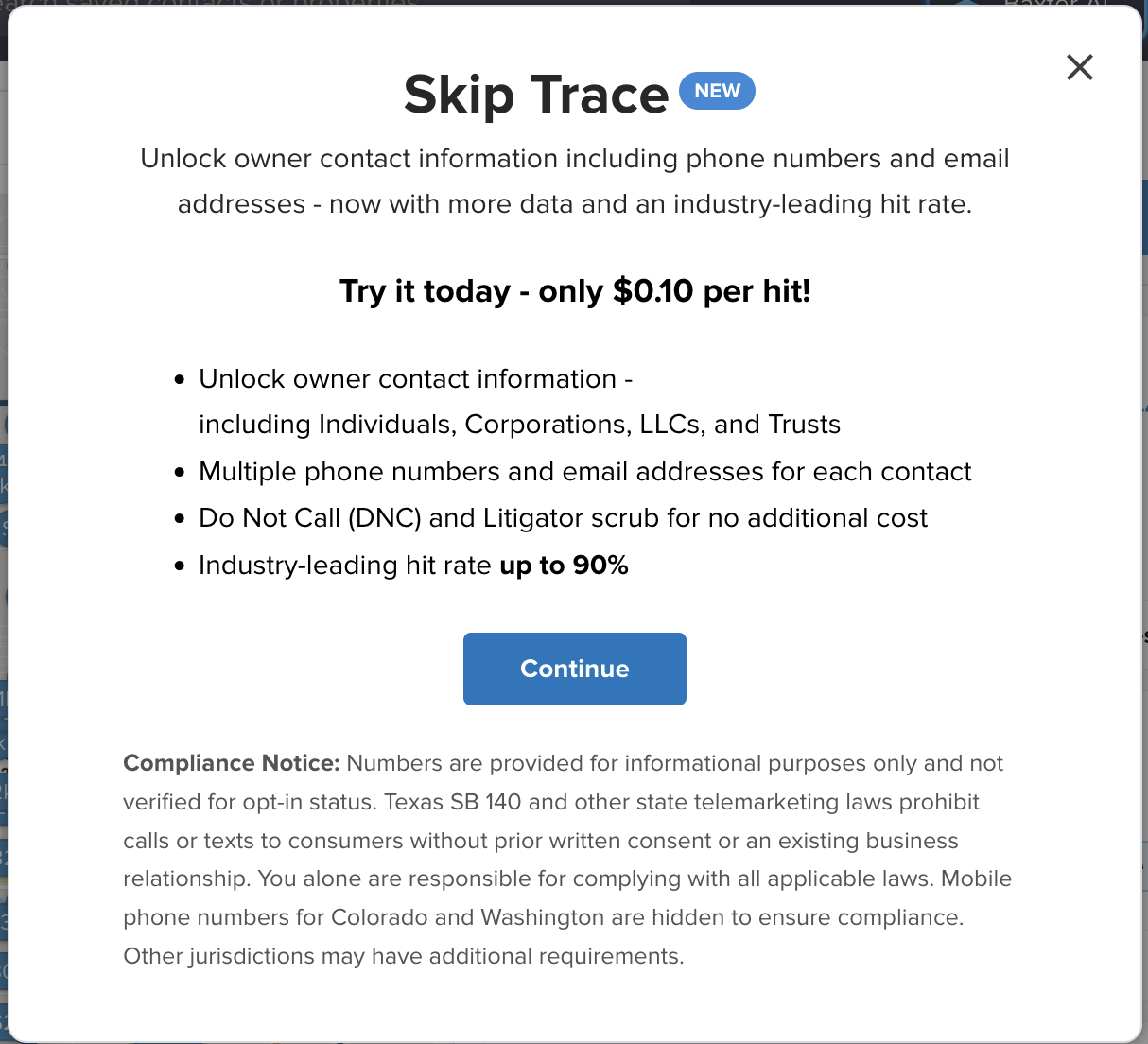
You will then see some details about Skip Tracing: Click CONTINUE
4. Select
Save Contacts to CRM: Choose whether or not to save the results as contacts in your CRM. Each contact will be tagged with your list name for filtering.
Use Recent Records: Use records pulled within the last month instead of paying for a fresh record. Your account is credited for each existing record used. Leave unchecked to pull completely fresh data.
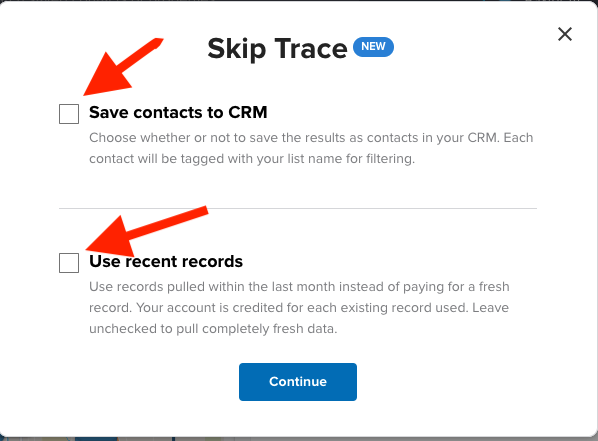
If you choose 'Save Contacts to CRM' you will also have an option to TAG the list. By Default, the list will be tagged 'Skip Traced DATE & TIME)
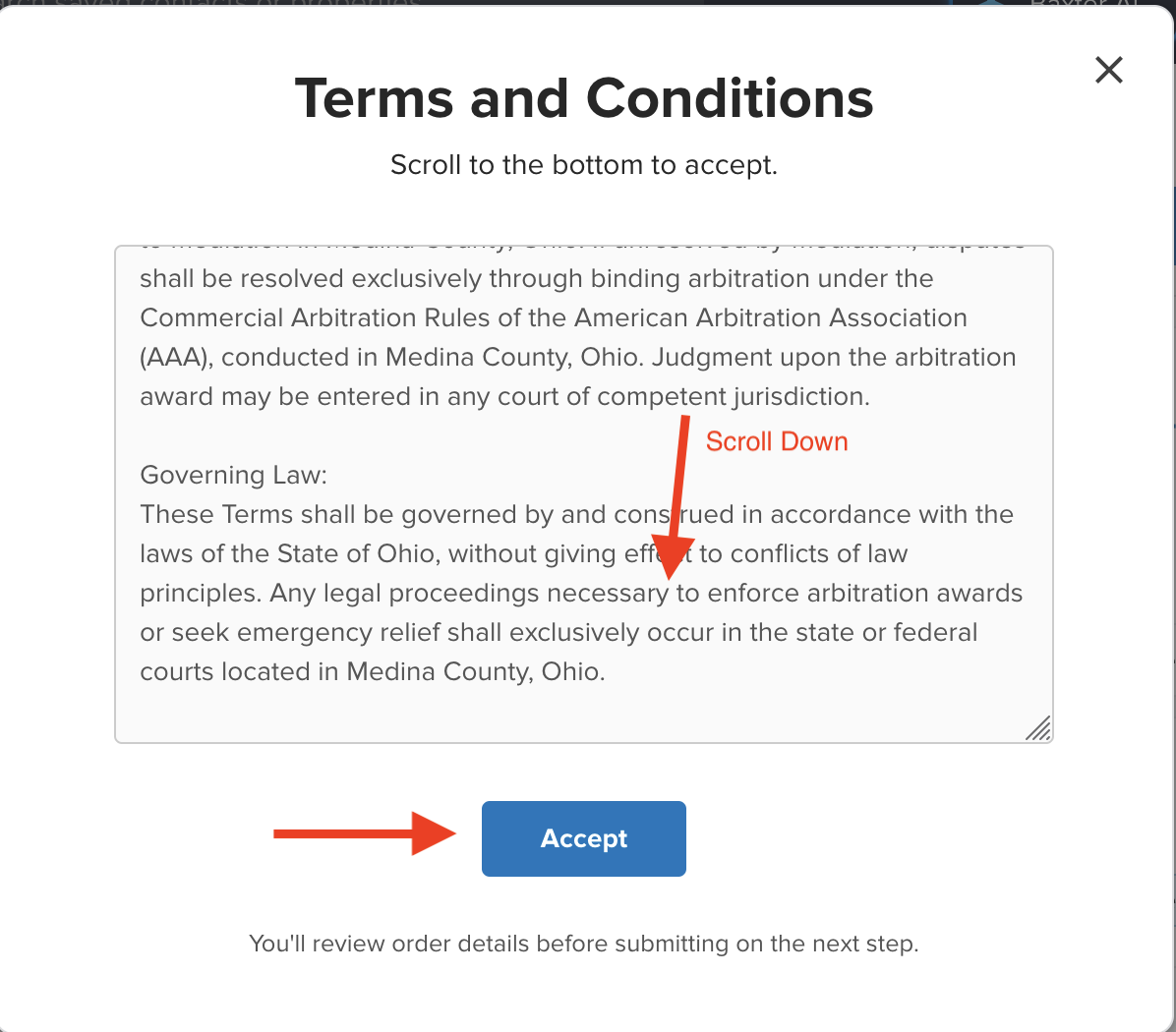
5. Accept the Terms & Conditions
Scroll through to the bottom of our Terms & Conditions in order to click ACCEPT and proceed.
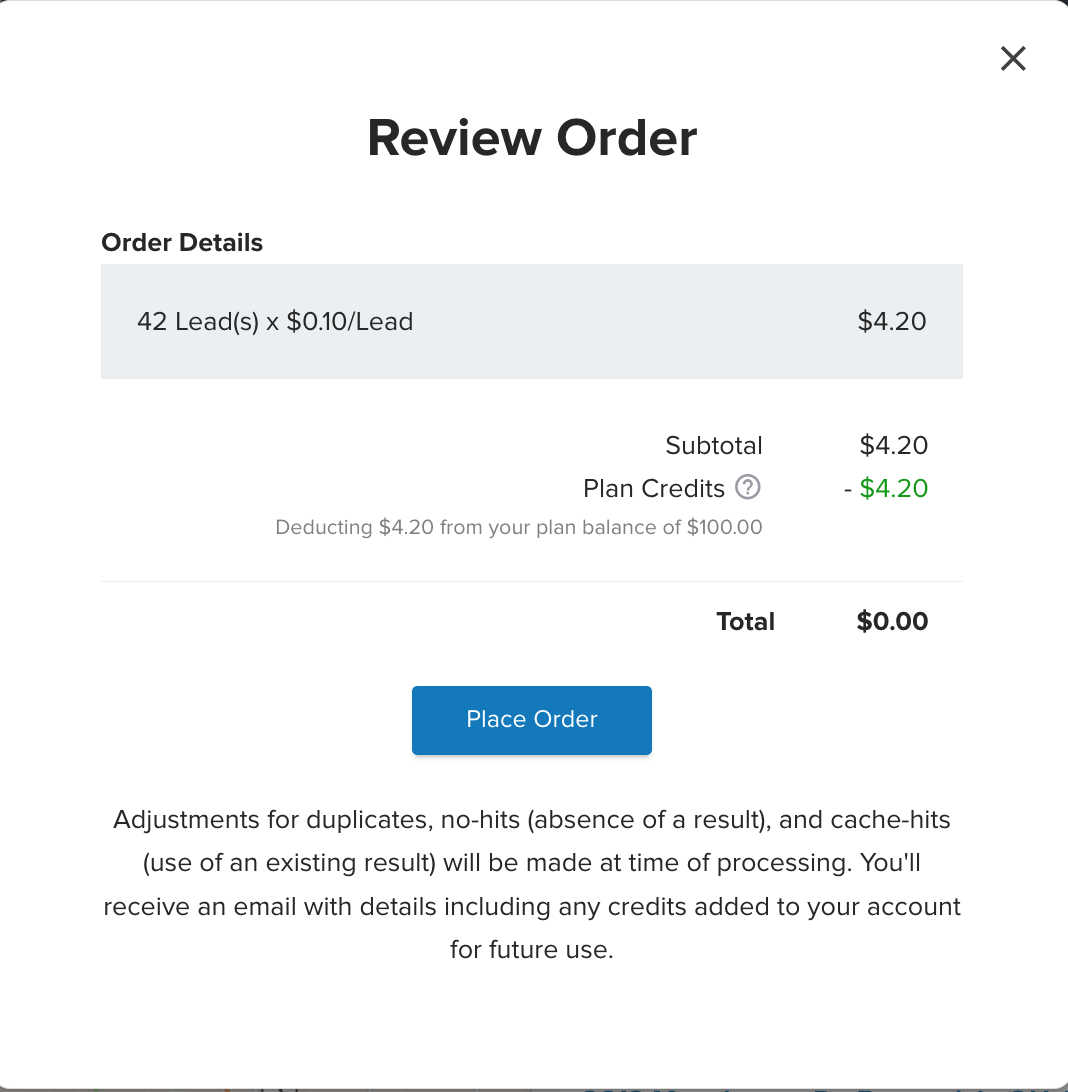
6. Review & Place Order
7. Email Confirmation
Depending on the size of your list, you will receive an email confirmation a few minutes after your order is submitted with instructions. Please keep in mind that larger lists may take longer to complete.
8. Delivery
Download to CSV
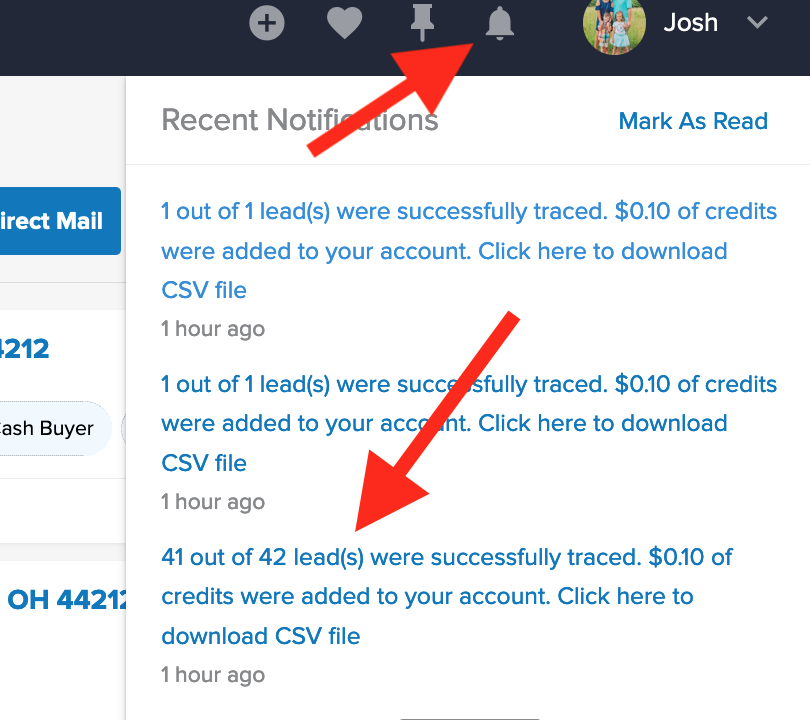
You will receive an email confirmation when your lead list is ready, however, you can also find a CSV of your SkipTrace leads in the notifications drawer (BELL icon) at the top right of your account.
Click on the notification to download the CSV file to your computer.
Save to Contacts
Navigate to your Contacts List view and click the Tags drop-down at the top of your list. Locate the Skip Trace tag or the tag you created and select it to filter your list.
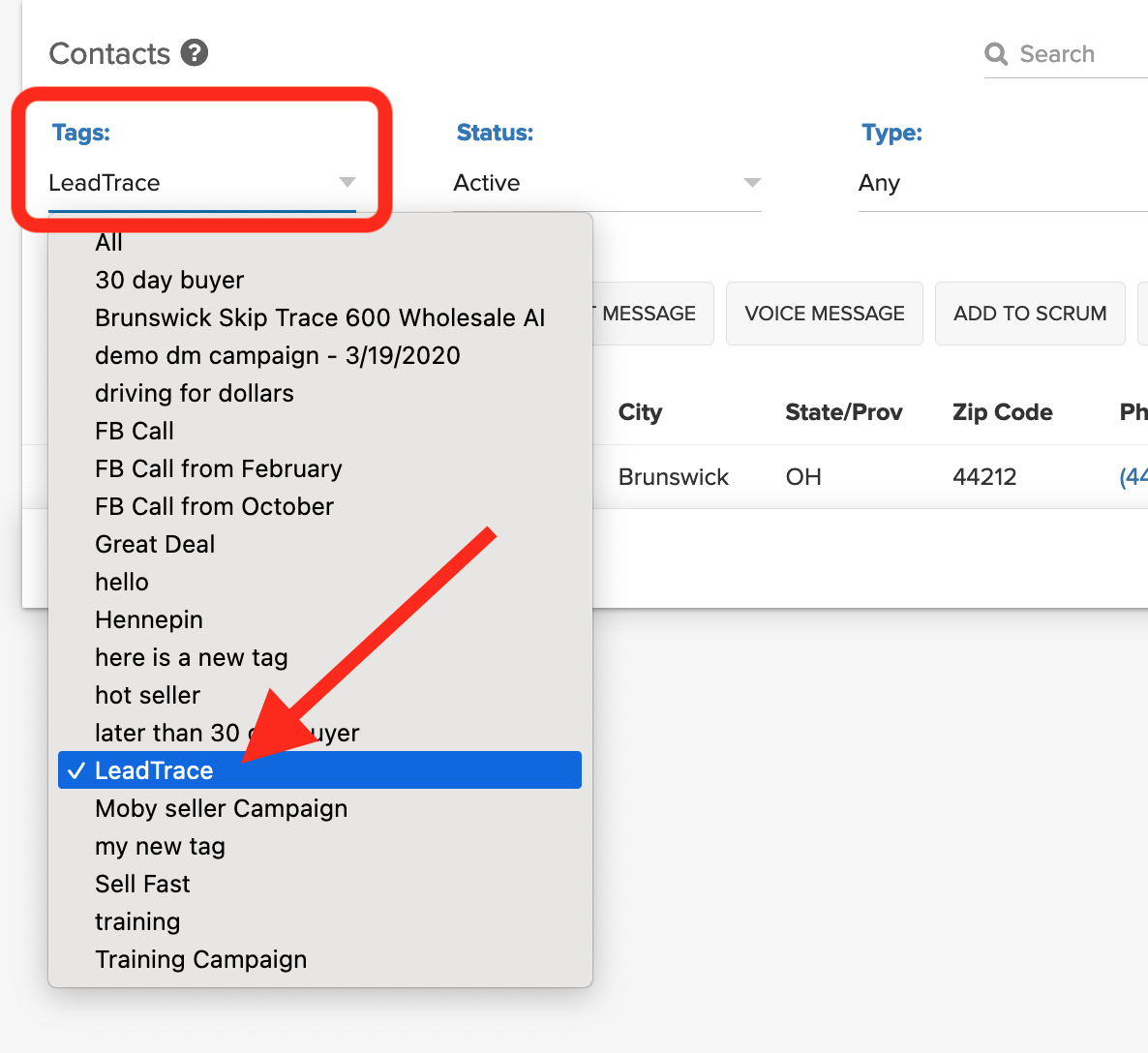
You will see the entire list of leads that were SkipTraced. If we were able to obtain a phone number, it will populate in the WORK PHONE field of the contact file and also be visible from the list view. For the other phone #'s and the email addresses, they will be delivered on the CSV file.
NOTE: We will automatically remove duplicate leads with the same owner name/mailing address combination. If you are charged twice for a duplicate owner, your account will be automatically credited for the duplicate charge.
QA Team